

You’ve just bought your licence key and now it’s time for the important bit: ensuring the system is activated and genuine. Find out How to activate Windows 10 It’s easier than it looks — it only takes a couple of minutes via the Windows Settings menu — and in this guide we’ll walk you through it step by step, without any technical jargon, so that you can do it first time round even if you’re not technically minded.
Whether you have a new password or have just reinstalled your computer, here’s what you’ll see How to activate Windows 10 with your licence, how to check that it has been successfully activated, and what to do if a warning message appears during the process.
Haven't got your password yet? To activate the software, you need a valid licence. You can purchase your Windows 10 Home licence o Windows 10 Pro with immediate delivery by email; please follow this guide as soon as you receive it.
Before you start: check your activation status
The first thing to do is to check whether your device is already activated or not. To do this:
- Open Home and go to Configuration (the cog icon).
- Go to Updates and security.
- In the menu on the left, click Activation.
On that screen, you’ll see one of two messages: «Windows is activated with a digital licence» (you’re all set) or a message stating that Windows is not activated. If it’s the latter, follow the steps below, where we explain How to activate Windows 10 by entering your password.
How to activate Windows 10 step by step using your product key
This is the standard procedure when you purchase a licence. Please have the 25-character key you received by email to hand; here’s how to proceed How to activate Windows 10 by following these steps:
- Go to Settings > Update & Security > Activation.
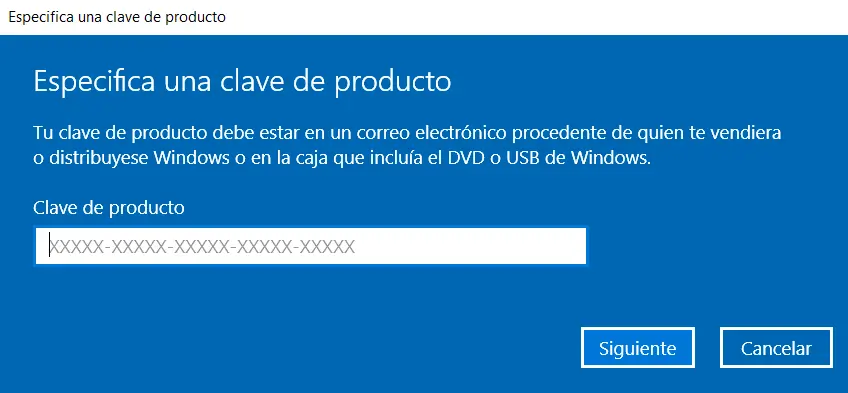
- Click on Change the product key.
- Type (or paste) the 25-character key exactly as you received it, including the hyphens.
- Click Next and wait for Windows to validate the key with Microsoft’s servers.
- When it’s finished, you’ll see a message saying that Windows is activated. That’s all.
For the validation to work, the team needs internet connection. If the process gets stuck halfway through, check that you’re connected and try again. Microsoft’s official documentation also explains how to activate Windows if you’d prefer to consult the original source.
How to activate Windows 10 over the phone if your internet connection fails
If online activation does not complete successfully, Windows 10 includes an alternative method by telephone, which is completely free and automated. This is the way to Activate Windows 10 when, for whatever reason, online validation does not work on that computer:
- Click Home, writes SLUI 04 and press Enter.
- Select your country or region.
- Windows will display a freephone number and a Installation ID. Call and follow the instructions given by the automated system.
- Enter the Confirmation ID Please make the call and confirm. Windows will then be activated.
How to check that Windows 10 is activated
After learning How to activate Windows 10, it is worth checking that the licence has been applied correctly. To make sure everything has gone smoothly, go back to Settings > Update & Security > Activation. If you see «Windows is activated», the licence has been applied correctly and you don’t need to do anything else. You can also type winver on the Start menu to view your system version.
Common problems when activating and how to resolve them
- «The key is invalid»: Check that you haven’t mixed up similar characters (such as the letter O for the number zero) and write it out using hyphens. Copying and pasting from the email helps to avoid mistakes.
- Wrong edition: A Windows 10 Home product key will not activate Windows 10 Pro, and vice versa. Please check that the edition installed matches the one on your product key.
- You replaced some parts in your PC: after replacing the motherboard, you sometimes need to reactivate it using the Activation Troubleshooter which appears on the same Activation screen.
- It is still not activated: Please get in touch. Our guarantee includes a password reset and 24/7 support until the issue is resolved.
Where to buy a genuine Windows 10 product key
To ensure that the activation goes smoothly, the first step is to start with a valid key. At Win10cdkeys you can buy your licence for Windows 10 Home or of Windows 10 Pro featuring:
- Immediate and automatic delivery: You’ll receive the code by email as soon as you’ve completed your purchase, ready to activate.
- Genuine licences and clear instructions, even if you’re not technically minded.
- Replacement guarantee and 24/7 support: If you have any problems with activation, we’ll help you until the issue is resolved.
In summary
- How to activate Windows 10: go to Settings > Update & Security > Activation, tap Change the product key and enter your 25-character password.
- You need internet connection; if that fails, use the activation by telephone with SLUI 04.
- Check the result on the Activation screen itself: it should say «Windows is activated».
- Always start with a genuine Windows 10 product key with immediate delivery and 24/7 support.
 Spanish
 English
 Italian
 Dutch
Dutch Portuguese
 German
 Polish
 French