

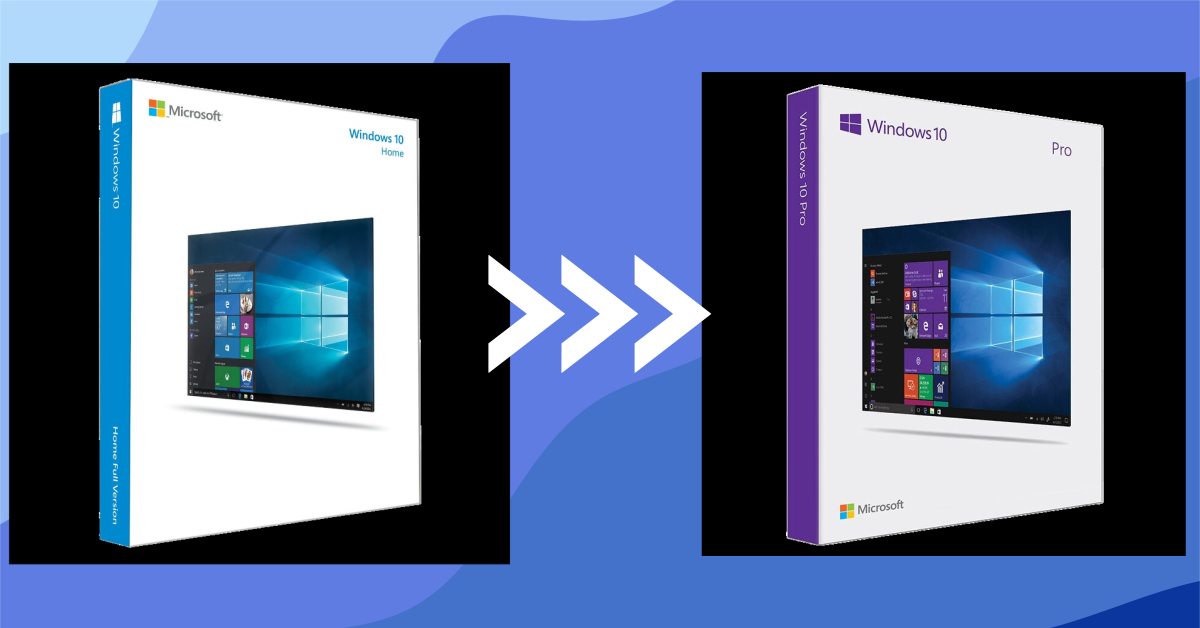
In this guide, we explain step by step how to Upgrade from Windows 10 Home to Pro without reinstalling the system or losing your files. The same process applies to Upgrade from Windows 11 Home to Pro: In both cases, this is an in-place upgrade, so you’ll keep your programmes, your documents and all your settings.
You’ll need a Windows 11 Pro product key or of Windows 10 Pro depending on which version you have installed. There are three steps and it takes no more than 10 minutes.
What are the real differences between Windows Home and Pro?
Before upgrading, it’s worth knowing what you stand to gain, as it isn’t worth it for everyone. These are the features that Windows Pro has but Windows Home doesn’t:
- BitLocker — Full-disk encryption. If your laptop is stolen, nobody can read your files. It’s the number one reason to upgrade to Pro.
- Remote Desktop (RDP) — connect to your PC from another computer. In Home, you can only connect from the team, not a he.
- Hyper-V — native virtual machines, without installing VirtualBox or VMware.
- Group Policy (gpedit.msc) — fine-grained system control: disabling telemetry, blocking updates, password policies.
- Domain joining and Azure AD — essential if the device is connected to a company’s network.
- Windows Sandbox — a disposable Windows environment for opening files you don’t trust.
- More RAM supported — The Home model remains at 128 GB; the Pro model goes up to 2 TB.
Whether you’re working from home, encrypting your hard drive or connecting to your office PC, the Pro version is well worth it. If you’re using your computer for browsing, office work and gaming, the Home version is perfectly adequate — Here we compare it in detail.
Steps to upgrade from Windows Home to Pro
Step 1: Deactivate the Internet
To carry out the update, you must disable your device’s internet connection. To do this, switch on aeroplane mode, turn off Wi-Fi and, if your device is connected via a cable, disconnect it as well.
Why? If Windows is connected to the internet whilst you’re entering the generic key, it will attempt to validate it against Microsoft’s servers; if this fails, it will abort the edition change. Without an internet connection, the change is made locally and you can then activate it using your genuine licence.
Step 2: Upgrade License
To update easily, go to your device’s settings, Updating and Security, and go to the section on Activation. If you can’t find the section, you can always search for «Activation» using the Windows search function.
In Windows 11, the path is slightly different: Configuration → System → Activation.
Once in the Activation section, click on «Change product key» and enter this generic licence:
VK7JG-NPHTM-C97JM-9MPGT-3V66T
The licence will begin an update process which may take several minutes. Once this is complete, return to the Activation tab to check that the Edition now shows Windows Pro.
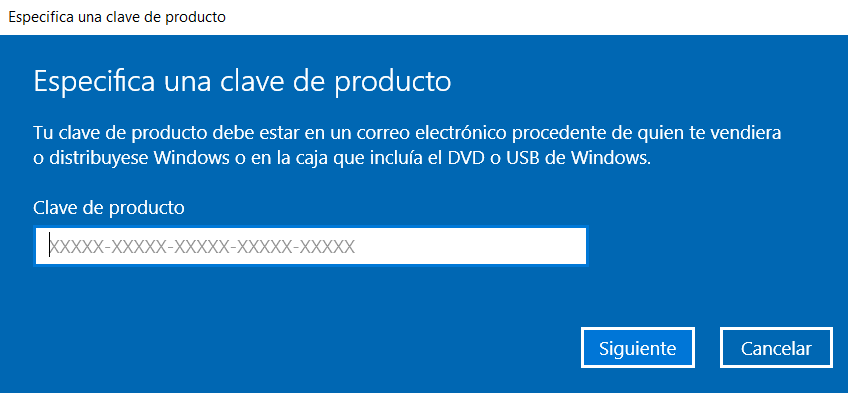
Step 3: Activate the equipment
To activate the device, make sure you are connected to the internet. Click on «Change product key» and enter the licence you have purchased. You have now finished upgrade from Windows Home to Pro: Check under «Activation» to ensure it says ‘Windows is activated with a digital licence’.
Step-by-step guide to upgrading from Windows 11 Home to Pro
The process is the same, but in Windows 11 the menus have moved and many people get confused. Here are the exact steps to Upgrade from Windows 11 Home to Pro:
- Disconnect the device from the internet (put it in aeroplane mode or unplug the cable).
- Open Configuration → System → Activation. Please note: in Windows 11, it is no longer under «Update & Security».
- Expand Update your edition of Windows and press Change under «Change product key».
- Enter the generic key VK7JG-NPHTM-C97JM-9MPGT-3V66T.
- The device will restart automatically. When it comes back online, under ‘Activation’ it will show Windows 11 Pro but not activated.
- Reconnect to the internet, go back to «Change product key» and enter your Windows 11 Pro license.
One important difference compared to Windows 10: in Windows 11, step 5 forces a full restart. Don’t do this if you’ve got work that hasn’t been saved.
If you want to activate a copy of Windows 11 that’s already the Pro edition but hasn’t been activated, the process is different and you can find it at the Guide to activating Windows 11.
Common errors when activating Windows Pro
If the edition change or activation fails, it is almost always due to one of these four reasons:
- 0xC004F050 — «The product key is invalid». You’re entering a Windows Pro product key into Windows Home, or vice versa. Check your version at Settings → System → About First of all.
- 0xC004C003 — «The activation server has determined that the key is blocked.». This usually happens when you try to activate it too many times in a row. Wait a few hours and try again, or activate it over the phone.
- 0x803FA067 — «Unable to update the edition». The device was still connected to the internet when I entered the generic password. Repeat Step 1 with the Wi-Fi actually switched off.
- It remains in «Windows Pro – not activated» mode. It’s normal: the generic key only Change the edition. Step 3 is missing: enter your genuine licence.
When it’s NOT worth upgrading to Pro
We don’t want to sell you a licence you don’t need. Don’t upgrade if:
- You just want it to «go faster». Pro doesn’t improve performance by even 1%. It’s exactly the same system with extra features unlocked.
- The PC is only for browsing the internet, using Office and playing games. You won’t be using BitLocker, RDP or Hyper-V.
- You’re going to get a new computer soon. An OEM licence is tied to the motherboard of the computer on which it is first activated.
- Your computer does not meet the Windows 11 system requirements and you’re thinking of upgrading your operating system at the same time. First, check whether your PC is compatible; if it isn’t, You might find this more interesting.
Frequently asked questions
Can I upgrade from Windows 10 Home to Pro without losing my data?
Yes. It’s an in-place update, not a reinstallation: your files, programmes and settings will remain exactly as they are. Even so, it’s a good idea to make a backup before making any changes to the system.
Does the same method work for upgrading from Windows 11 Home to Pro?
Yes, the steps are exactly the same in Windows 10 and Windows 11. The only difference is the menu path (in Windows 11 it’s Settings → System → Activation) and that you must use a product key for the version you have installed.
Can you upgrade from Home to Pro for free?
Upgrading the edition is indeed free: the generic key VK7JG-NPHTM-C97JM-9MPGT-3V66T upgrades your Windows Home edition to Pro without costing you a penny. However, the system remains not activated, with a watermark and customisation disabled. To fully activate it, you need a Pro licence, and that’s where the price makes the difference: Microsoft charges the full price for the upgrade via the Store, whilst a digital OEM licence costs €7.95.
How much does it cost to upgrade from Home to Pro?
With a Windows Pro OEM digital licence It costs €7.95, and the resulting version is exactly the same as the one sold by Microsoft: same updates, same features, same support.
Will the Windows Home product key I already had work?
No. A Home licence key only activates the Home edition. For the Pro edition, you need a Pro licence key. Your previous licence key remains linked to that Home installation and cannot be converted.
Does the generic key VK7JG activate Windows?
No. That key only changes the edition from Home to Pro; it leaves Windows unactivated. You then need to enter your actual Pro licence key to activate it, which is Step 3 of this guide.
Do I need to uninstall anything or reformat the hard drive?
Nothing. It doesn’t reformat, it doesn’t uninstall anything, and you won’t lose any licences for the programmes you’ve installed. The computer restarts once and remains exactly the same, but with Windows Pro.
 Spanish
 English
 Italian
 Dutch
Dutch Portuguese
 German
 Polish
 French