

For activate Windows 11 You’ll need a 25-character product key and two minutes. This guide covers the whole process: standard activation via Settings, what to do if it fails, how to activate over the phone, and what any error codes that may appear mean.
If you haven’t installed Windows yet, you can download it directly from the Microsoft’s official website. The download is free; you pay for the licence.
How to activate Windows 11 and why it’s important
Activating Windows 11 involves linking your copy of the operating system to a genuine Microsoft licence. Until you do so, Windows will work, but with limitations that are more annoying than they might seem:
- A permanent watermark in the bottom right-hand corner, over whatever you do.
- Customisation is disabled: you cannot change the wallpaper, colours, theme or lock screen.
- Frequent «Activate Windows now» notifications that interrupt whatever you’re doing.
- Some optional updates and features are not available.
Security updates and critical patches do continue to be released, but an unactivated copy of Windows is a system running at half-speed and in a state that Microsoft could restrict at any time.
How to activate Windows 11 step by step:
Step 1: Access Activation Settings
- Open the menu Home and click on Configuration (gear icon).
- Go to Updating and Security → Activation.
- Here you will see the activation status of your Windows and the installed edition (Home, Pro, etc.).
💡 Important: If you have Windows Home and you want to switch to Windows ProYou must first upgrade your edition before activating. You can follow this official Microsoft guide to upgrade from Home to Pro: Upgrade from Windows 11 Home to Pro
Step 2: Obtain a genuine product key
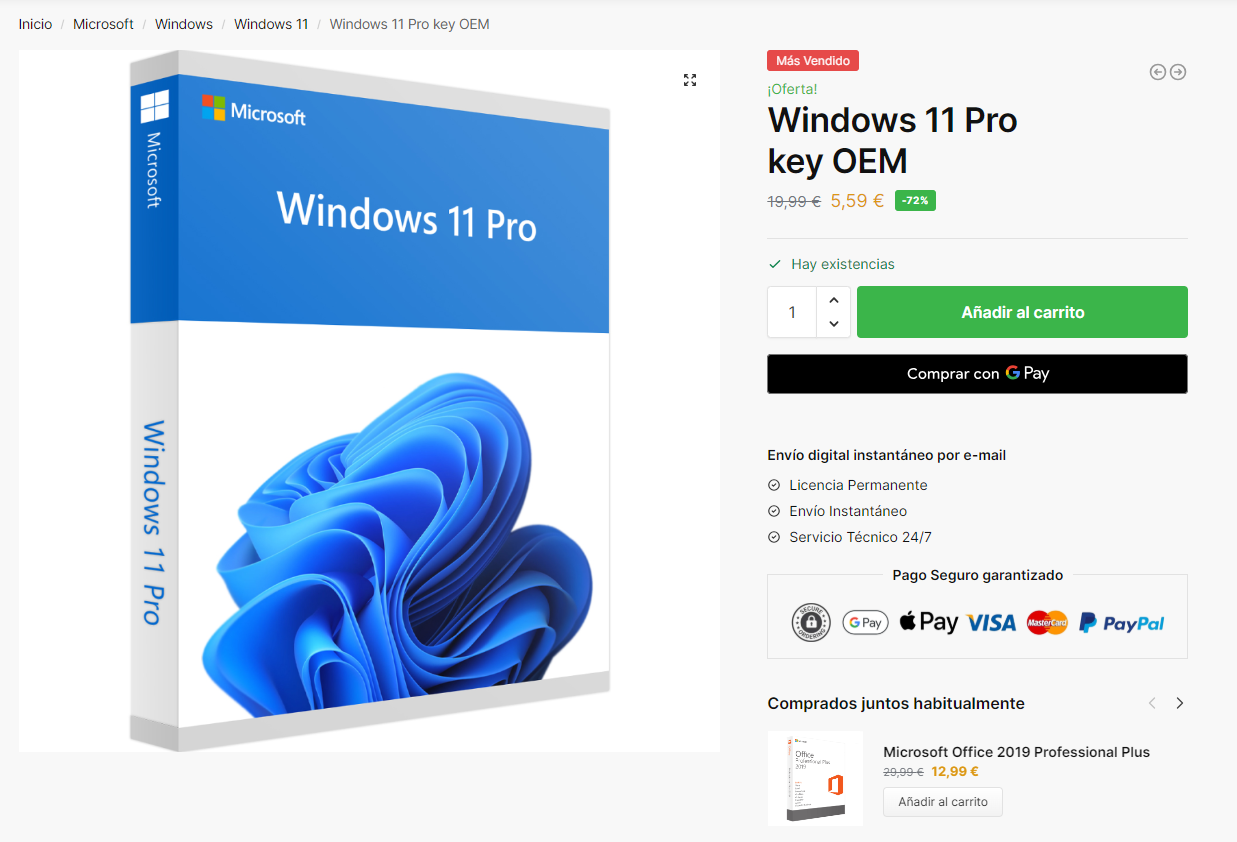
To activate Windows, you need a genuine product key. If you have not yet purchased a genuine Windows 11We invite you to visit our website win10cdkeys.com to obtain a cheap and original licence.
Acquiring a legal licence is essential to comply with Microsoft's policies and to ensure full access to all Windows features, including security updates and official support.
You will automatically receive the licence by email after purchase. Activate your Windows today and enjoy all its benefits!
Step 3: Enter the Product Key
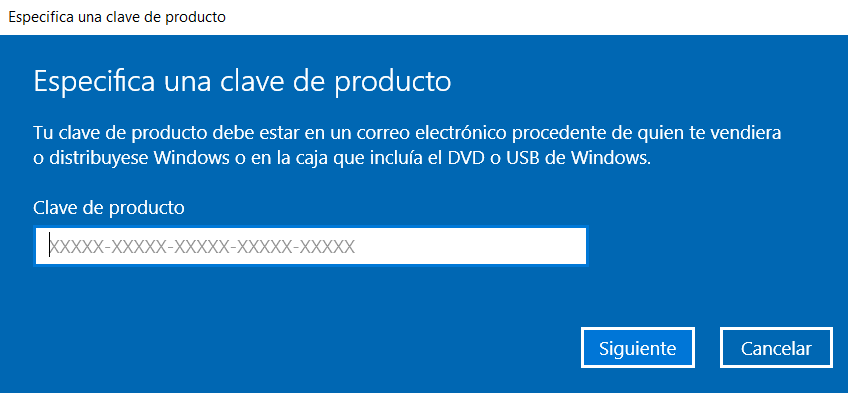
From the activation settings click on "change product key". and enter the previously purchased license, click next and then click Activate to complete the activation of Windows 11.
From that point onwards, the licence will be linked to your computer. If you reinstall Windows on the same computer, it will activate automatically.
Conclusion
In this guide we have looked at how to activate Windows 11 for different editions quickly and legally. If you have any questions about the process or the activation licences, you can contact our customer service.
Don't have a licence yet? Compare the Pro and Home editions and their prices: Windows 11 key
Common problems when activating Windows 11
- 0xC004C003 — «The activation server has determined that the key is blocked.». This is usually because you’ve tried to activate it several times in a row. Please wait a few hours or activate it by phone with
slui 4. - 0xC004F050 — «The product key is invalid». The product key is for a different edition or version. A Home product key will not activate Pro, and a Windows Pro product key will not activate Home. Check your edition at Settings → System → About.
To upgrade from Home to Pro, you can follow our Guide to upgrading from Windows Home to Pro. - 0x803FA067 — «The edition of Windows could not be updated.». You’re trying to switch editions whilst connected to the internet. Disconnect from the internet, enter the generic key, and reconnect.
- 0xC004F074 — «Unable to contact the activation service». It’s almost always down to the system’s date and time being set incorrectly, or an antivirus programme blocking the connection. Set the time automatically and restart the system.
- «Windows Pro» but not activated. You switched editions using the generic key, and you still need to enter the actual licence. It’s just one more step, not an error.
 Spanish
 English
 Italian
 Dutch
Dutch Portuguese
 German
 Polish
 French